Quick start
Ten minutes from install to a first reviewed change. This assumes the plugin is installed and you are logged in as a superuser.
1. Open the matrix
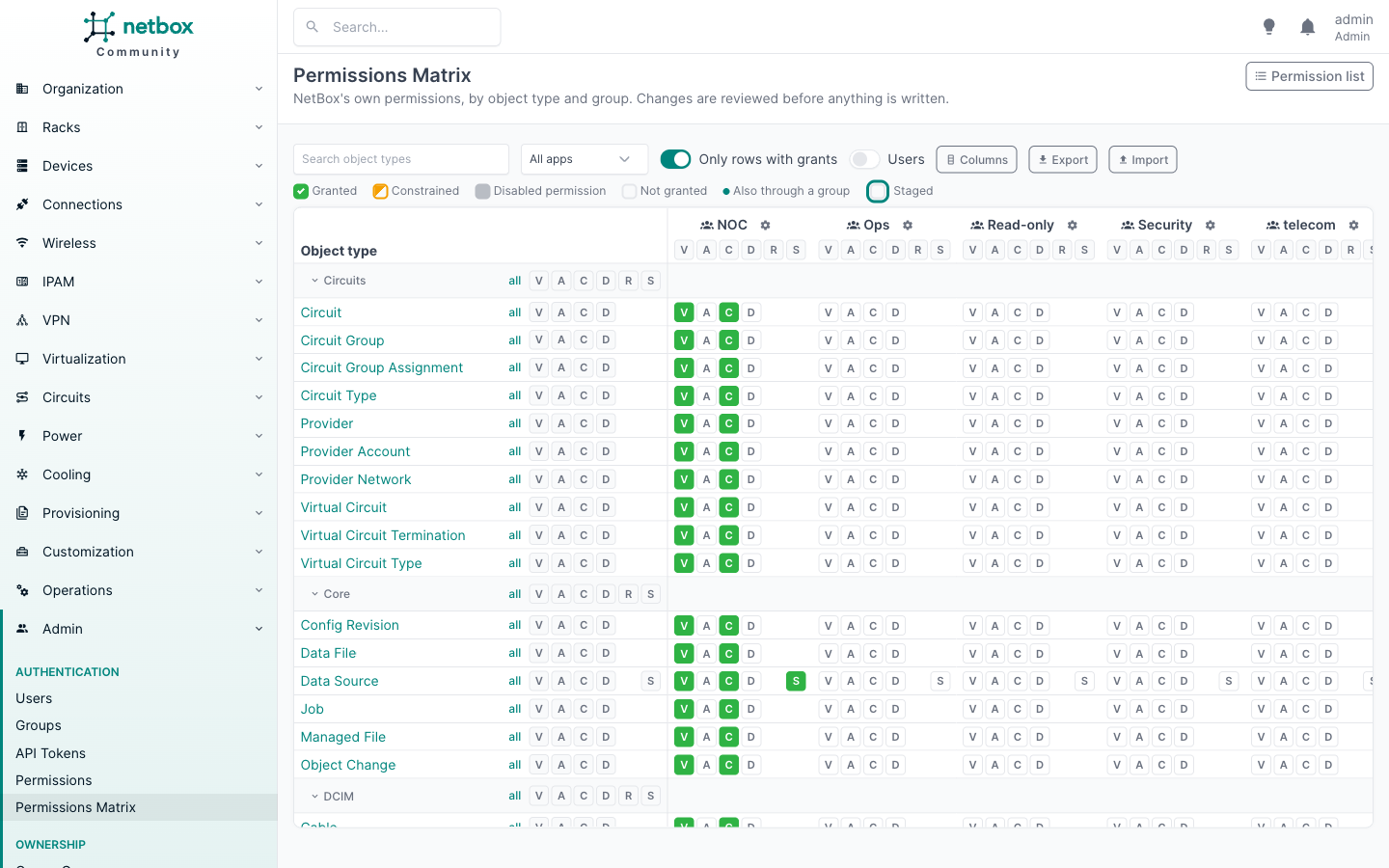
Go to Admin > Authentication > Permissions Matrix. The matrix shows every action at once: one row per object type, one column per group, and in each cell a chip per action (V, A, C, D, and R or S where the model has them). A green chip is an action the group has on that object type.
If there are no groups yet, create one first (Admin > Authentication > Groups). The matrix never creates groups or users.
2. Read it
- A green chip means granted. A half-filled chip means granted under constraints, for some objects only. A grey, faded chip means only a disabled permission covers it. See cell states.
- Hover a chip to see which permissions cover it.
- Type in the search box, or pick an app, to narrow the rows. Use Users to add columns for users who have permissions of their own.
- Click an object type name to see who can do anything with it, across every action.
3. Change something
- On the Device row, in the column of a group, say NOC, click V and A. The chips get a coloured outline: the change is staged, not written.
- Click a green chip in another column to revoke it.
- Click Review changes in the bar at the bottom.
The review lists every permission NetBox would create, change or delete, field by field, and which groups and users
each one affects. Ticking creates or grows a permission named after the group and its actions, like noc_va for
view and add. Unticking a cell that a
permission shares with other groups splits that permission, so the other groups keep exactly what they had.
How changes map to permissions explains every rule.
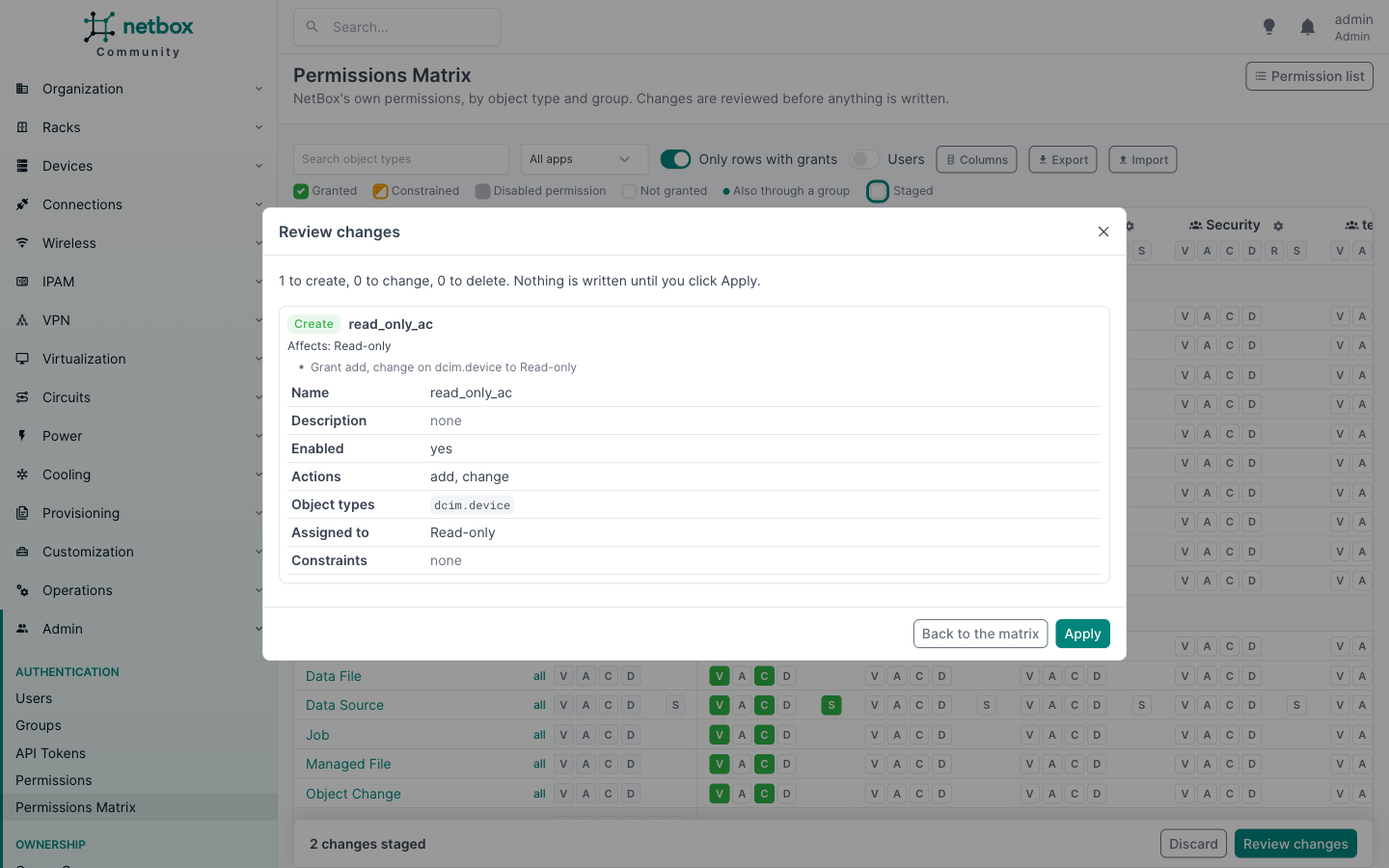
- Click Apply. Everything is written in one transaction, and the matrix reloads.
The new or changed permissions are ordinary NetBox permissions: open Admin > Authentication > Permissions to see them. NetBox keeps no change log for permissions; the plugin logs every write instead (see Troubleshooting).
4. Look at one group
Open a group (Admin > Authentication > Groups, then a group) and its Permissions Matrix tab: the same cells, turned around, with every action as a column. See Group tab.
5. Keep a copy
Click Export to download the shown part of the matrix as YAML, for every action. Importing it later, here or on another NetBox, stages whatever differs, for review. See Export and import.
Next
- Permissions: who may use the matrix, and who may change it.
- Configuration: the name of new permissions, menu placement, hidden apps.
- Limitations: what the matrix does not show.