The matrix
Open Admin > Authentication > Permissions Matrix.
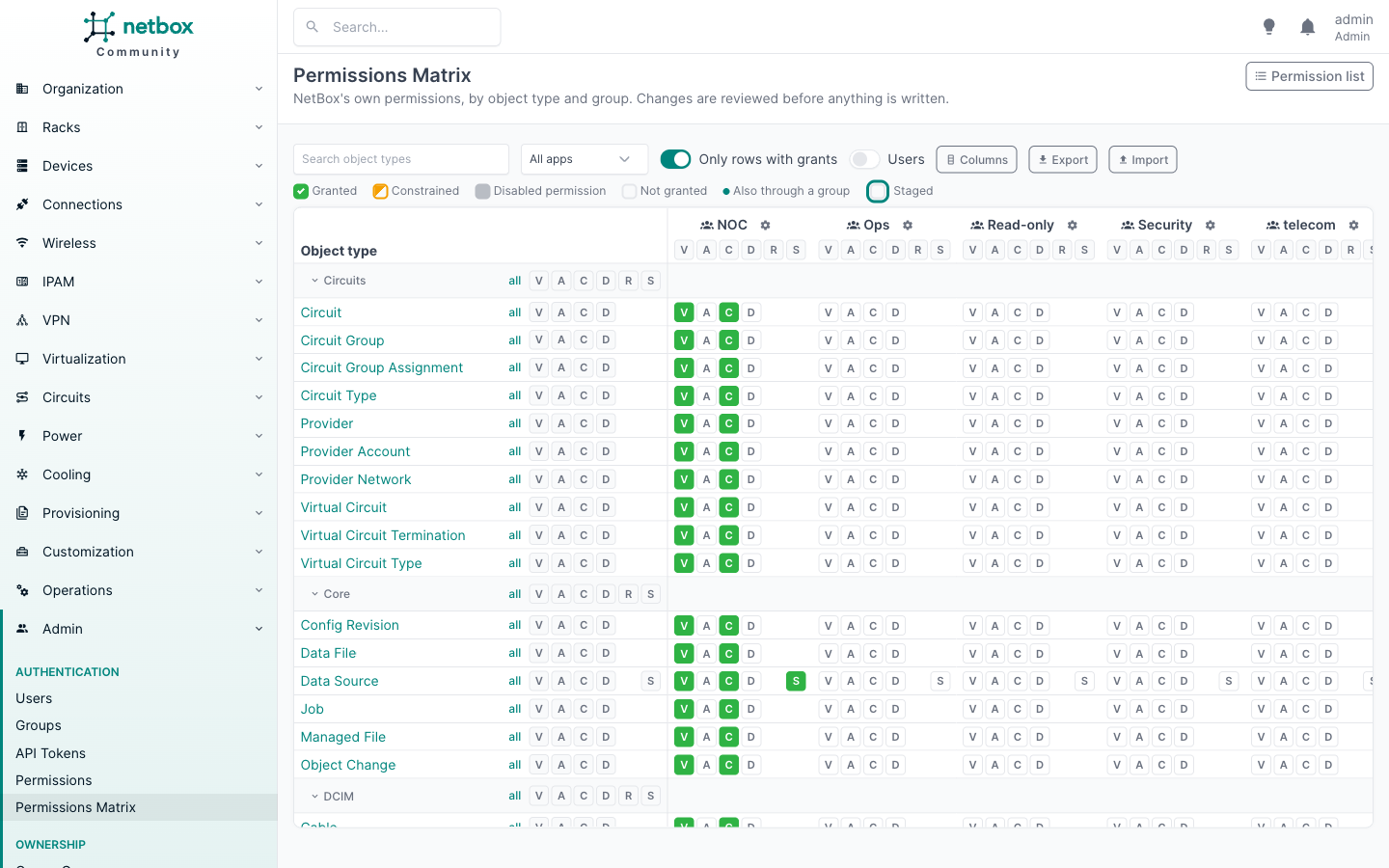
[search] [apps] [ ] Only rows with grants  [Groups] [Users]  [Export]  [Import]

                            |   NOC ⚙       |   Ops ⚙       |
                            | [V A C D R S] | [V A C D R S] |
  DCIM      all V A C D R S | [V A C D R  ] | [V A C D R  ] |
    Device  all V A C D R   |  V A C D R    |  V A C D R    |
    Site    all V A C D     |  V A C D      |  V A C D      |
  Core      all V A C D R S | [V A C D   S] | [V A C D   S] |
    Data S. all V A C D   S |  V A C D   S  |  V A C D   S  |

                            3 changes staged   [Revert last] [Discard] [Review changes]
Actions
All actions opens first: each cell holds one lettered chip per action, so everything a group or user can do on an object type is on one line.
| Letter | Action |
|---|---|
| V | View |
| A | Add |
| C | Change |
| D | Delete |
| R | Render Config |
| S | Sync |
Custom actions registered by models, such as Sync on data sources or Render Config on devices, only have a chip on the rows whose model has them; the slot stays empty elsewhere so the letters line up down the column. Other actions found in existing permissions (typed into "Additional actions" on the classic form) get a chip on every row, with their first letter: NetBox cannot tell which models they apply to.
With the show_action_tabs setting on, tabs next to All actions show one action at a time, with
one box per cell. The active tab is kept in the URL (?action=change), so a tab can be bookmarked; All actions is
?action=* or no parameter. The setting is off by default, and the page then shows only the all-actions grid.
Rows and columns
Rows are the object types NetBox lets you put in a permission, grouped by app. Click an app name to collapse it.
- Search filters rows by model or app name.
- Apps limits the apps shown.
- Only rows with grants hides rows where no visible column has the action.
Columns are groups, then users, each by name. Groups picks which groups are shown: all of them at first.
Users picks which users are shown, among those who have a permission assigned directly: none at first. Users who
get access only through a group have no column; the who can page shows them. When not every group, or
any user, is shown, the button counts them (3/42). The choice is kept in the URL, so it can be bookmarked.
The header row and the object type column stay in place while you scroll.
Click an object type to open its who can page.
Cell states
Each chip, or box on a single-action tab, shows one of these states:
| Look | State | Meaning |
|---|---|---|
| empty | Not granted | No permission covers the cell. |
| filled green | Granted | At least one enabled permission without constraints covers the cell. |
| half filled | Constrained | Only enabled permissions with constraints cover the cell (disabled ones are ignored): access to some objects, not all. |
| filled grey, faded | Disabled | Only disabled permissions cover the cell. NetBox ignores them. |
| coloured outline | Staged | Changed on the page, not applied yet. |
Hover a chip or box to see every permission that covers it, with its constraints.
In a user column, a small dot marks access the user also has through a group; the tooltip names the group. A group you cannot view is not named: the tooltip says "a group you cannot view" instead. The dot is only information: the user column changes the user's own permissions, never the group's.
Changing cells
Click a chip (or a box on a single-action tab) to toggle it between granted and not granted. A constrained or disabled one becomes granted on the first click; the second click revokes it completely. See Constraints and Disabled permissions.
In the all-actions grid, each column header has a row of letters: click one to toggle that action for the whole column. Each row and app section reads all V A C D ...: all toggles every action in every visible column, and a letter toggles only that action, for example D on the Device row gives or takes delete on Device for every group shown. On a single-action tab, column headers, rows and app sections have an all toggle for that action.
App sections also have letters in each column, lined up with the chips below: one toggles that action on every row of the app for that group or user only. V A C D on the Core line under NOC gives NOC every right on Core, one action at a time. On a single-action tab, each column has the letter of its action.
Each toggle ticks every visible cell in its line whose action applies to the object type, or unticks them all if they are already ticked.
Changes are only staged in your browser. The bar at the bottom counts them and flashes briefly with each change. Revert last (or Ctrl+Z, Cmd+Z on a Mac, outside text fields and dialogs) takes back the last change: a cell, a toggle, the gear panel, an import or a Discard. Click it again to go further back, up to the last Apply or reload. Discard forgets every staged change. Leaving the page with staged changes asks for confirmation.
Review and apply
Review changes asks NetBox to plan the staged changes, without writing anything, and shows every permission it would create, change or delete, field by field, with the groups and users each change affects and any warnings. How changes map to permissions explains the rules.
Apply writes the plan in one transaction. If someone changed one of the permissions involved since the review, took a name the review gives, or deleted a group or user in it, nothing is written and the page asks you to reload. See Concurrent changes.
The gear panel
The gear next to a column name opens a panel listing the group's or user's permissions: all of them in the all-actions grid, the ones granting the action on a single-action tab. Each shows its actions and how many object types it covers, and links to its page in NetBox. Open one to edit:
- name and description;
- enabled;
- constraints, for every object type and action in that permission.
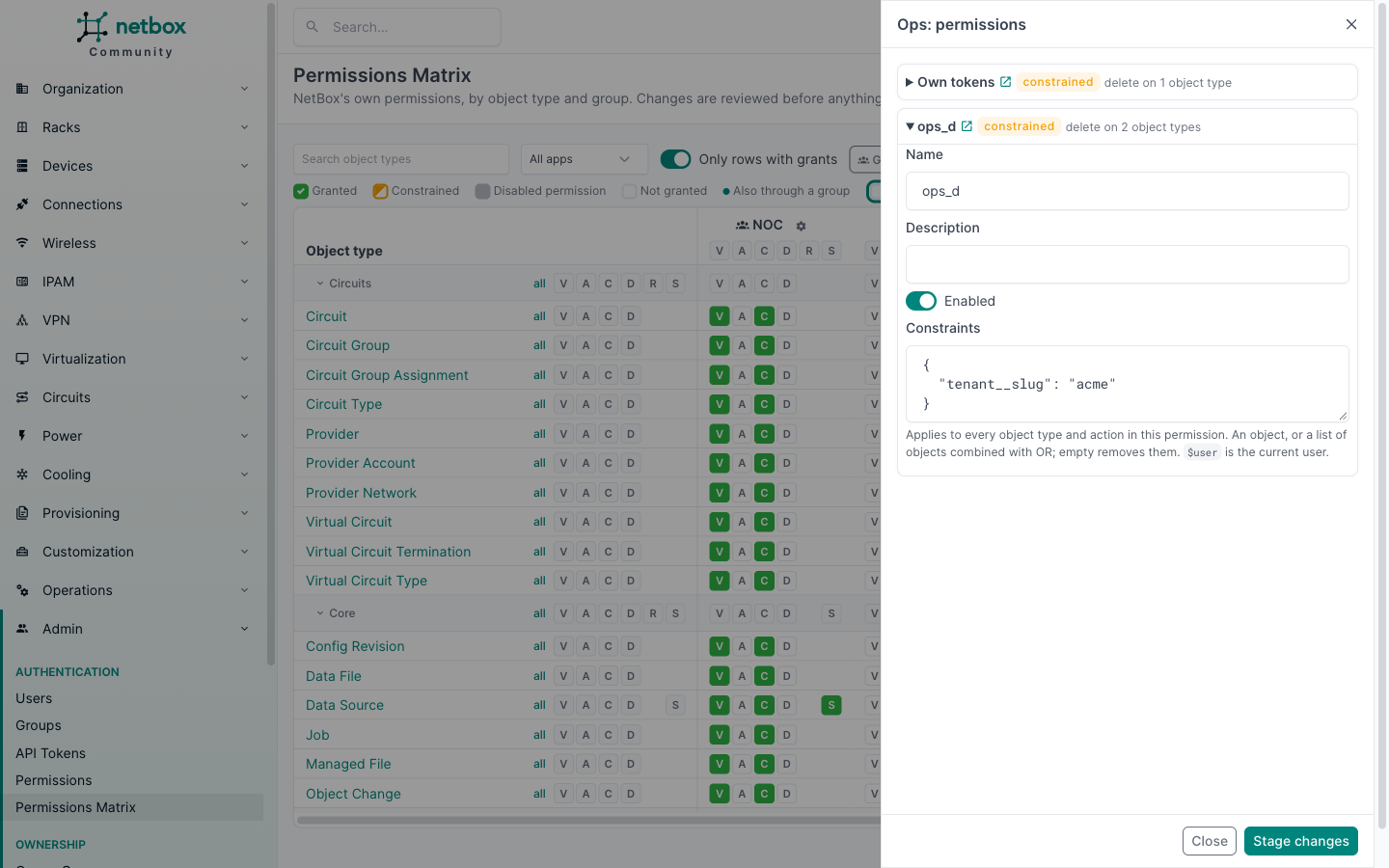
Panel changes are staged and reviewed like cell changes. A permission shared with other groups or users says so at
the top of its form: editing it changes their access too. If a new name is already taken, the review warns and
shows the name that will be used instead, with a number appended (NOC | view 2).
Panel edits are applied before the cell changes of the same review. So if you disable noc_v and tick view on
another object type in one go, the new grant goes into a new permission and is not disabled with noc_v. If the
cell changes remove everything from a permission you also edited, the permission is deleted and the review warns
that the edit is lost.
Adding constraints to a simple permission such as ops_va, or disabling it, makes it no longer simple: the review warns that new
grants of view and add for Ops will then go into a new permission (ops_va 2). To give a group constrained access
to some object types and full access to others, keep them in separate permissions. To add actions, groups or users
to a permission, use its page in NetBox or the REST API.
Constraints use NetBox's format: an object, or a list of objects combined with OR, and $user for the current user.
Constraints explains them in full, with recipes.
They are checked against every object type of the permission, as on the classic form.
Read-only mode
Users who may view permissions but not add, change or delete them see the matrix read-only: chips show their state but do not toggle, and there is no review. See Permissions.