Interactive TUI
nsc tui opens a full-screen, keyboard-driven terminal UI over your NetBox —
browse, filter, edit, bulk-edit and search across object types without writing a
single command. It is generated from the same OpenAPI-derived command model as
the CLI, so it works for every resource your NetBox exposes (plugins
included) with no per-model wiring.
nsc interactive and nsc i are aliases of the same command.
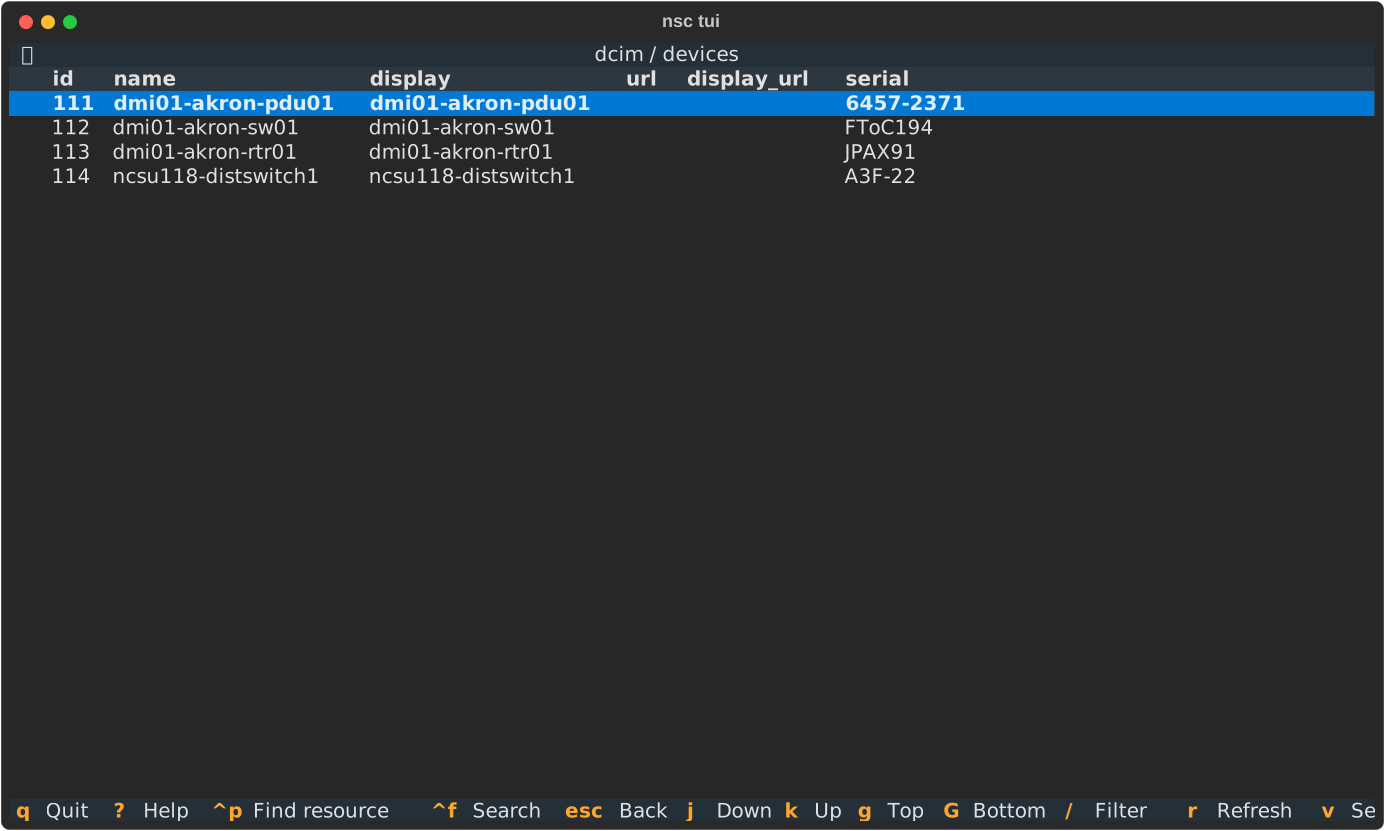
It uses your active profile and auth exactly like the CLI. Textual (the TUI toolkit) is imported lazily, so the normal CLI's startup time is unaffected.
Help is one key away
Press ? on any screen for a full, always-accurate keymap — it is generated from the live bindings, so it can never drift from reality.
The resource picker
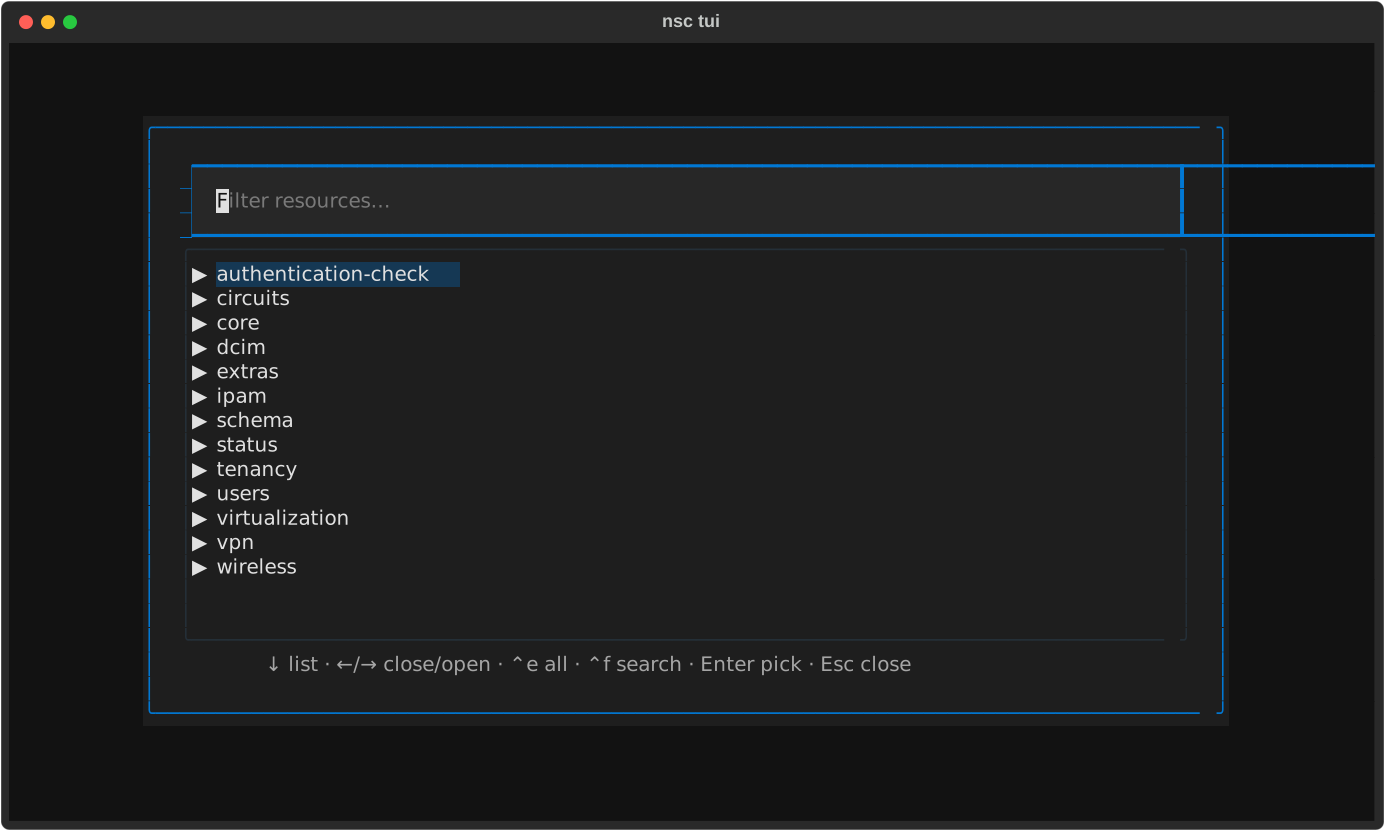
With no argument, nsc tui lands on a collapsible tree of resources grouped
by category (dcim, ipam, …). It is also reachable anywhere with
Ctrl+P.
| Key | Action |
|---|---|
| ↑/↓ | Move |
| → / ← | Open / close a group |
| Ctrl+E | Expand / collapse all |
| type | Filter — non-matching groups hide, matching ones auto-expand |
| Enter | Open the highlighted resource (or the top match while filtering) |
| Ctrl+F | Global search |
Browsing a list
Opening a resource shows a paginated table.
| Key | Action |
|---|---|
| j/k or ↑/↓ | Move |
| g / G | Top / bottom |
| Enter | Open the record's detail |
| / | Open the filter builder |
| r | Refresh |
| f | Choose columns |
| v / Space | Toggle multi-select on a row |
| c | Create a new record |
| B | Bulk-edit the selected rows |
| Esc | Back |
While the list fetches, a loading wheel shows on the table; the rest of the UI stays responsive.
Filtering
/ opens a filter builder rather than a bare text box, because a NetBox list endpoint exposes hundreds of query parameters.
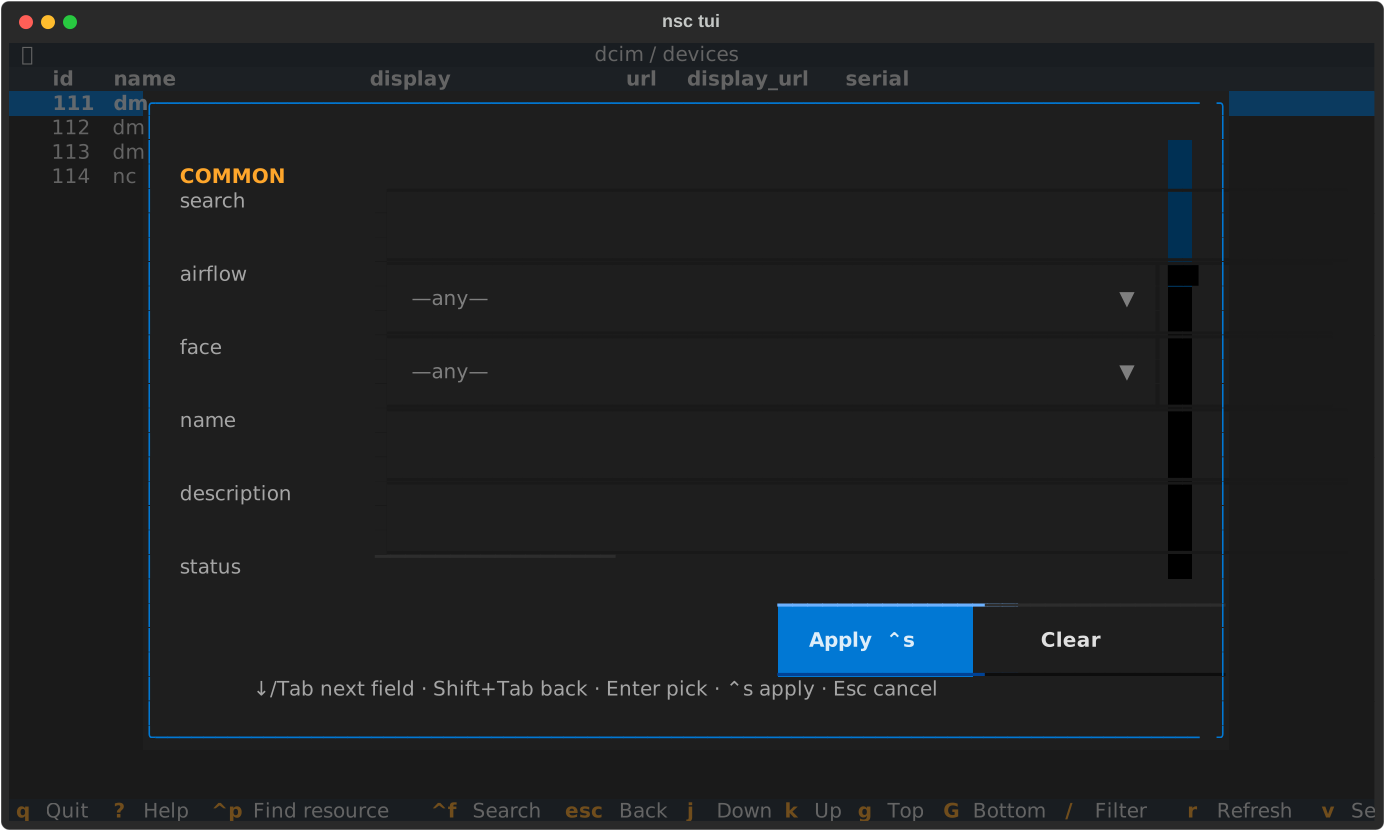
- Common fields — a curated form of the fields you usually filter on: the
free-text
search, every choice field as a dropdown, and conventional fields (name, status, role, site, tenant, tag, …). - Add filter — a search box over every available parameter, including
lookups like
name__icorcreated__gte. - Foreign keys open the record picker, so you choose a real object (it
applies as
…_id) instead of guessing a slug. - Raw line — type
key=value key2=value2directly for power use. - Active filters show as removable chips.
| Key | Action |
|---|---|
| ↓ | Move to the next field (from a text field) |
| Tab / Shift+Tab | Move between fields |
| Ctrl+S | Apply |
| Ctrl+W | Save the current filters as a named search |
| Ctrl+O | Load (or delete) a saved search |
| Esc | Cancel |
Applying re-queries the list. Reopening the builder shows your current filters so you can refine them.
Saved searches
Ctrl+W stores the current filter set as a NetBox native
saved filter (extras.saved-filters), scoped to the current resource's object
type. It then appears in the NetBox web UI's filter dropdown for that object, and
filters created in the web UI load here with Ctrl+O — the two
surfaces are interchangeable. In the load picker, Enter applies the
highlighted search and d deletes it. Re-apply one non-interactively
with nsc <app> <resource> list --saved <name>.
If NetBox is unreachable (offline, or you lack permission on
extras.savedfilter), saves and loads transparently fall back to a local store in
~/.nsc/config.yaml and a toast tells you the fallback was used.
Viewing and editing a record
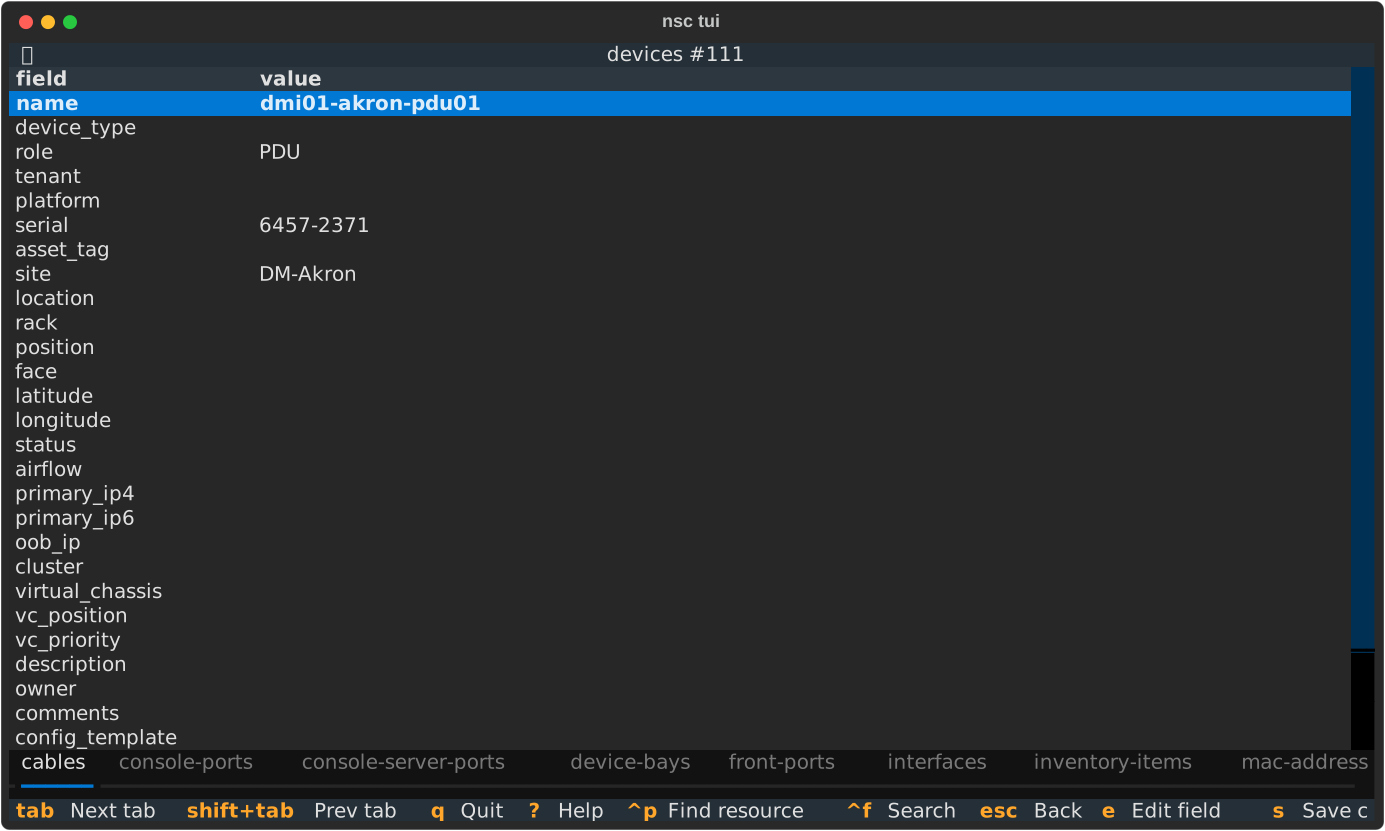
The detail view is the edit surface — there is no separate "edit window".
Move to a field and edit it in place; changes accumulate locally and are sent in
one PATCH when you save.
| Key | Action |
|---|---|
| ↑/↓ | Move between fields |
| e or Enter | Edit the highlighted field |
| Enter | (while editing) validate the value into the staging buffer |
| s | Save all staged changes |
| o | Open the related resource in the active relationship tab |
| Tab / Shift+Tab | Switch relationship tab |
| d | Delete the record (with confirmation) |
| Esc/b | Back (prompts if you have unsaved edits) |
Editing adapts to the field: choice fields validate against their options, booleans toggle, and foreign keys open a searchable record picker. When a field is read-only it says so. Editing never hard-blocks: if a foreign key's target can't be resolved from the schema, you can enter the numeric id directly.
Pressing s shows a diff (field: old → new) and asks you to
confirm before anything is sent.
Saving applies immediately
Unlike the CLI's dry-run-then---apply rhythm, the TUI's safety gate is the
diff confirmation. Confirming the diff sends the PATCH to NetBox right
away. Writes go through the same audited HTTP client as the CLI.
Relationships
The detail view derives relationship tabs straight from the schema: from a device you get Interfaces, Modules, Cables, and so on — any resource whose list endpoint can filter by this one. Switch tabs with Tab and press o to open that related list, pre-filtered to the current record.
Bulk editing
Select rows on a list with v/Space, then press B. Each field is one row: flip its include toggle (the switch on the left) to opt it into the change, then set its value — a field with the toggle off is left untouched. Custom fields appear as individual rows under their human label. Fields are prepopulated with the value the selected records share, so a small tweak doesn't mean retyping.
Press p to preview — a per-record diff of exactly what will change (records already matching are left untouched). Confirm to apply; a progress bar runs the updates and a summary reports any per-record failures (one bad record never aborts the batch).
Choosing columns
Press f on a list to open the column chooser.
| Key | Action |
|---|---|
| Space | Toggle a column |
| Shift+↑/↓ | Reorder |
| Enter | Apply |
| Esc | Cancel |
Only top-level fields are offered — a foreign key or choice field is one column
(rendered via its display value), not a pile of site.id / site.url rows. Your
choice is persisted per resource to ~/.nsc/config.yaml under columns, the
same config the CLI reads (and which --columns overrides), so it sticks across
launches and is shared between the TUI and the CLI.
Global search
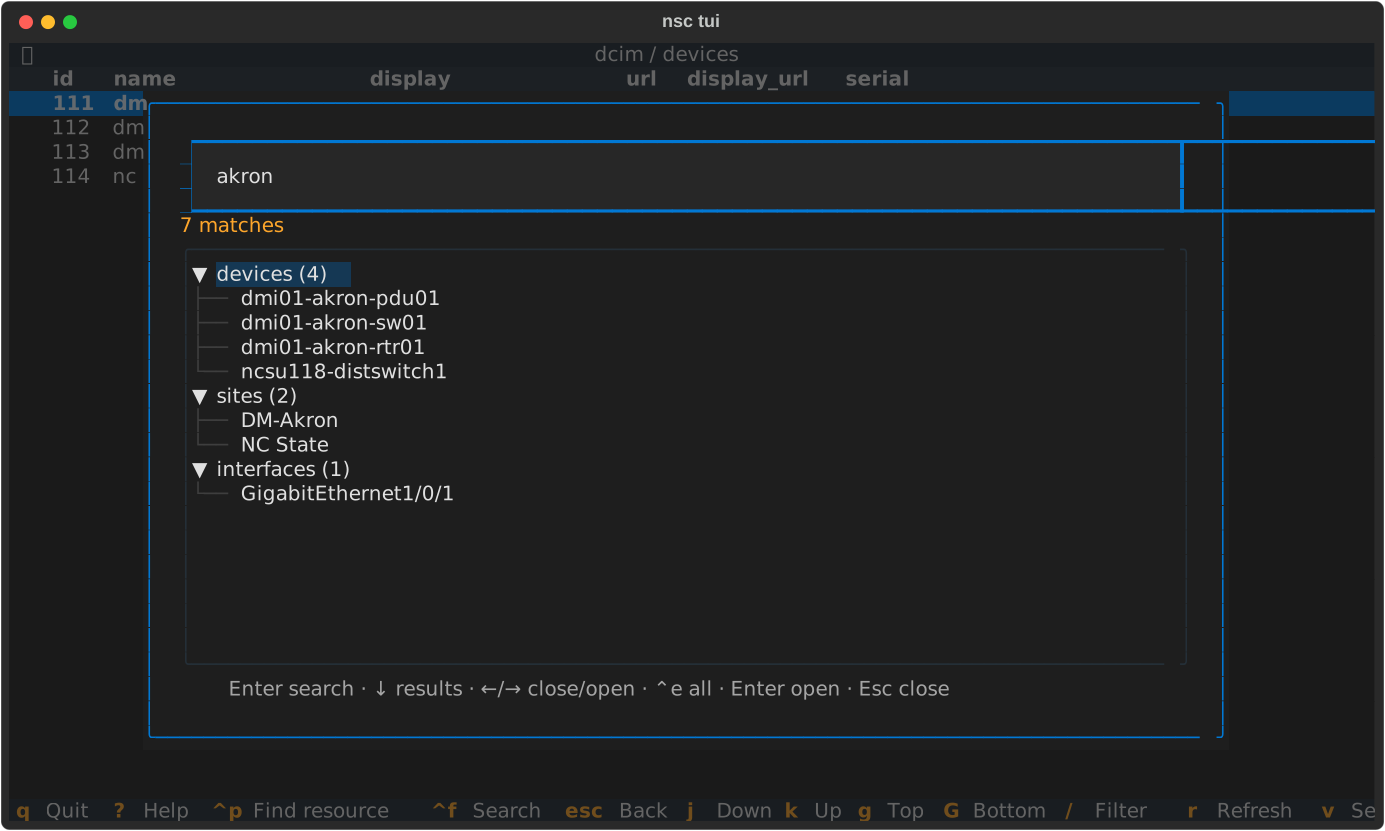
Ctrl+F (from anywhere) opens a search across many object types at once. Type a term, press Enter, and matches stream in grouped by type with a spinner while it runs; selecting a result opens its detail view.
How it works
NetBox has no single global-search REST endpoint, so nsc approximates the
web UI by querying a curated set of common, q-capable resources
(devices, virtual machines, IP addresses, prefixes, sites, racks,
interfaces, VLANs, VRFs, tenants, circuits, …) and merging the results.
Niche types aren't searched here — use the resource picker for those.
Loading and errors
Slow fetches show a loading wheel on the results area while the input stays usable. API errors (a bad filter value, a transient network blip) are caught and shown as a one-line message — the TUI never crashes to a traceback, and your current view is preserved.
Keyboard reference
Global keys work on the list and detail screens:
| Key | Action |
|---|---|
| ? | Help overlay |
| Ctrl+P | Resource picker |
| Ctrl+F | Global search |
| Esc | Back |
| q | Quit |
The resource picker and other modals (global search, the column chooser, confirm and diff dialogs) are focused overlays: they show their own key hints in-line and do not bubble the global keys above — close them with Esc first.
The footer always shows the keys for the current screen, and ? lists them all. Arrow keys navigate everywhere; the list view also accepts vim-style j/k.